CCM-Editor FAQ & Help
CCM-Editor tutorials
The following guides are intended to make it easier to get started with CCM-Editor.
Tutorial 1 – Supported climate data formats
Climate data contain meteorological records generated by measurements and/or algorithms. For most simulation programs, outdoor air temperature and humidity as well as radiation intensities are important input parameters. They can subsequently be used for simulation-supported analyses, for example of a building model or a construction detail.
The physical quantities can be stored in different file formats, both ASCII files and binary formats. The three most important formats that can be read directly by CCM-Editor are described below.
C6B
The C6B climate data format was developed at the Institute of Building Climatology at TU Dresden. It represents annual and continuous climate data sets and contains the following data:
- Air temperature [°C]
- Relative humidity [%]
- Direct normal radiation [W/m²]
- Diffuse horizontal radiation [W/m²]
- Wind direction [°]
- Wind speed [m/s]
- Long-wave sky counter-radiation [W/m²]
- Air pressure [Pa]
- Precipitation on a horizontal surface [l/m²h]
The data are stored in binary format, primarily for licensing reasons. For larger, multi-year data sets, reading the file is faster and checking valid number formats during reading is no longer necessary. This can save considerable time in variation studies such as Monte Carlo or sensitivity analyses, where many fast DELPHIN simulations are started.
EPW
The EPW format is a simple ASCII text format supported internationally by many simulation programs. The EnergyPlus weather database provides weather data for many locations worldwide. The format supports:
- Dry-bulb and dew-point temperature
- Relative humidity
- Sky counter-radiation
- Global, direct and diffuse solar radiation
- Global, direct and diffuse illuminance
- Wind speed and direction
- Cloud cover
The EPW format defines one or more start and end dates, for example 1 January to 31 December. It also defines the intervals, such as hourly or quarter-hourly data.
WAC
The WAC format was introduced by the Fraunhofer Institute for Building Physics in Holzkirchen, primarily for hygrothermal simulations. DELPHIN can process it natively. WAC files contain essentially the same climate data as C6B files; solar radiation is specified either as direct horizontal radiation or as global radiation on a horizontal surface. Compared with EPW, the format is somewhat easier to generate from spreadsheet programs such as Excel or LibreOffice Calc.
Tutorial 2 – Creating new climate data sets
Climate data sets can consist of annual hourly data, which is usual for annual or multi-year cyclic use. If data sets are created from measurements, another time grid or flexible time steps may be required. Measurement series also frequently begin in the middle of a year.
CCM-Editor distinguishes between these two time-series variants during data entry. Therefore, when creating a new climate data set, it must already be decided whether it is an annual data set or uses a flexible time grid.
The choice between hourly annual data and flexible time points can only be made when creating a new data set and cannot be changed afterwards. Data from an hourly annual data set can nevertheless be transferred to a flexible time grid: copy the data series into a spreadsheet, create a new climate data set and copy the data back.
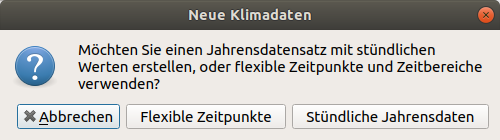
For hourly annual data, the table contains exactly 8760 rows and the time points are fixed. With flexible time points, the table initially contains only two rows. Additional rows can be added with  or removed with
  as required.
Tutorial 3 – Editing existing climate data sets
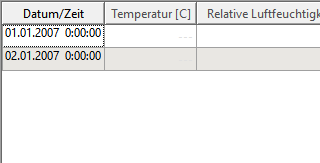
Climate data are displayed in a table. They can be edited by double-clicking a cell or entering a number. Every value is checked for validity. Entries that are not recognized as numbers are rejected. A value outside the accepted range is retained but marked in red as invalid.
The value <code>---</code> indicates that no valid value exists in a cell. Depending on the contents of a column, its header is colored differently. If no data at all exists for a climate quantity, usually precipitation or pressure, the column header is shown in gray.
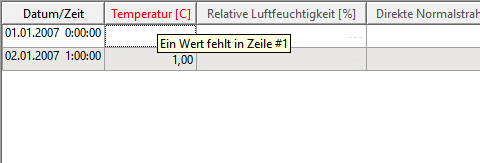
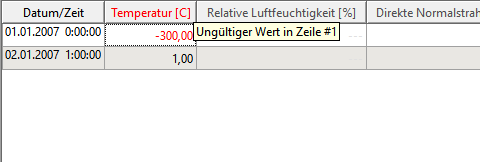
If all values in a column are present and within the accepted range, its header is displayed normally. As soon as one value has been entered, all other values in the series are checked. Missing values turn the column header red, and its tooltip identifies the first missing cell. Values outside the accepted range are indicated in the same way.
CCM-Editor checks entered data for plausibility. The generously defined valid ranges are: temperature [-100,+100] °C, relative humidity [0,100] %, radiation [0,1500] W/m², wind direction [0,360]°, wind speed [0,120] m/s, air pressure [0,200000] Pa and precipitation [0,100] l/m²h.